7 Powerful Microsoft Copilot Secrets That Instantly Boost Your Productivity in 2026
Artificial intelligence is no longer just a futuristic concept—it has become an everyday productivity partner. One of the most impactful tools leading this transformation is Microsoft Copilot. Whether you’re a student, freelancer, business owner, or corporate professional, Copilot is designed to help you work smarter, not harder.
In 2026, productivity is not about working more hours; it’s about using the right tools efficiently. Microsoft Copilot integrates deeply into apps you already use—like Word, Excel, PowerPoint, Outlook, and even your browser—making it one of the most practical AI assistants available today.
In this detailed guide, we’ll explore 7 powerful secrets of Microsoft Copilot that can completely transform how you work, create, and manage tasks.
Also Read: 5 Best Secret AI Writing Tools to Instantly Boost Your Content Creation
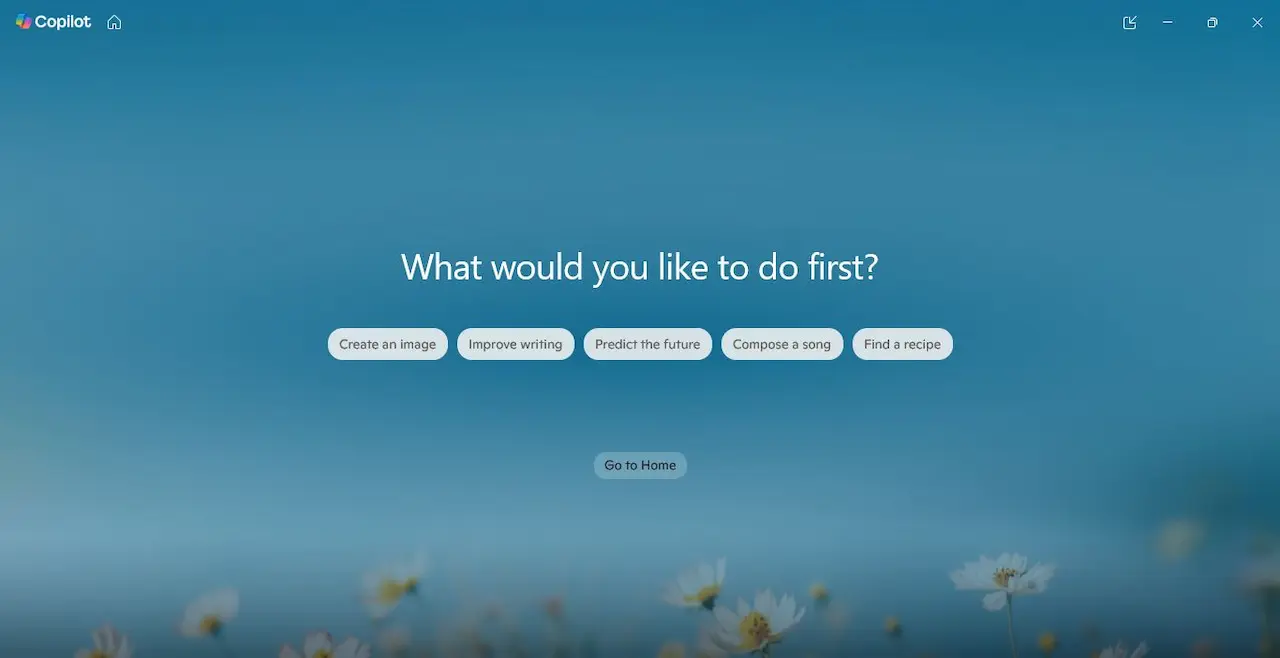
What is Microsoft Copilot and Why It Matters in 2026
Understanding Microsoft Copilot
Microsoft Copilot is an advanced AI-powered assistant that works directly inside Microsoft applications, helping users complete tasks faster and more efficiently. It is designed to act like a smart helper that understands your instructions and assists you in real time without needing extra tools.
Let’s break down how it helps in different areas:
Write Content:
Copilot can generate blog posts, emails, reports, and social media content within seconds. You just need to give a simple instruction, and it creates a structured draft. It also improves grammar, tone, and clarity, making your content look professional even if you’re a beginner.
Analyze Data:
In tools like Excel, Copilot can study your data, find patterns, and give insights. You don’t need to use complex formulas—just ask questions like “show trends” or “compare results,” and it will provide clear answers.
Create Presentations:
Copilot can turn your ideas or documents into complete PowerPoint slides. It organizes content into sections like introduction, main points, and conclusion, saving hours of manual work.
Manage Emails:
It helps you write professional emails, reply quickly, and even summarize long email conversations so you don’t have to read everything.
Automate Repetitive Tasks:
Tasks like formatting documents, creating reports, or rewriting similar content can be automated, saving time and effort.
Why Copilot is a Game-Changer
One of the biggest reasons Microsoft Copilot stands out is its context awareness. Unlike traditional tools that require manual input at every step, Copilot understands what you are currently working on and provides smart suggestions in real time. This means you don’t have to explain everything from scratch—the AI already knows the context of your task and assists accordingly.
For example, when you are writing in Word, Copilot helps you build well-structured paragraphs, improve sentence flow, and even suggest headings or ideas to expand your content. It acts like a real writing assistant sitting beside you.
When working in Excel, Copilot goes beyond basic calculations. It can analyze your data, identify trends, and suggest formulas or insights without requiring deep technical knowledge. This makes data analysis much easier, especially for beginners.
Similarly, while creating presentations, Copilot can automatically turn your ideas or documents into complete slides. It organizes content into a logical flow, adds key points, and even suggests layouts—saving hours of manual work.
This deep integration across multiple tools is what makes Copilot truly powerful. Instead of using separate apps for different tasks, everything happens within one ecosystem. As a result, your workflow becomes smoother, faster, and far more productive compared to using traditional tools.

Secret #1 – Use Copilot to Write High-Quality Content in Minutes
Secret #2 – Turn Raw Data into Insights with Copilot in Excel
Simplify Complex Data Analysis
Working with spreadsheets can feel confusing, especially for beginners who are not familiar with formulas or data functions. This is where Microsoft Copilot makes a big impact. Instead of manually applying formulas or spending hours trying to understand data, Copilot can analyze everything automatically.
You can simply ask:
“Analyze this data and show trends.”
Within seconds, Copilot studies your dataset, identifies patterns, and presents clear insights in an easy-to-understand format. This removes the need for technical knowledge and allows anyone to work with data confidently.
Create Charts and Visualizations
Understanding numbers becomes much easier when they are presented visually. Copilot can instantly convert raw data into:
- Graphs
- Charts
- Dashboards
These visual elements help you quickly understand performance, comparisons, and trends. They are especially useful when preparing reports or presentations, where clear visuals can make your data more impactful and professional.
Real-World Example
Imagine a small business owner reviewing monthly sales data. Instead of manually analyzing spreadsheets, they can simply ask:
“Which product performed best this month?”
Copilot will instantly process the data and provide a clear answer, often supported by visual insights. This not only saves time but also helps in making faster and smarter business decisions.
Secret #3 – Create Stunning Presentations in PowerPoint
Build Slides in Seconds
Creating presentations from scratch can take a lot of time, especially when you have to think about content, structure, and design all at once. With Microsoft Copilot, this process becomes incredibly fast and simple. Instead of spending hours building slides manually, you can generate a complete presentation with just a single prompt.
For example, you can type:
“Create a presentation on social media marketing strategy.”
Within seconds, Copilot will generate a full set of slides, including an introduction, key points, and a conclusion. This gives you a ready-to-use presentation that you can quickly review and customize.
Smart Design and Structure
Copilot doesn’t just create slides—it ensures they are well-organized and visually effective. It automatically:
- Adds clear headings to each slide
- Structure the content logically for better flow
- Suggests relevant visuals to make your presentation more engaging
This means even beginners can create professional-looking presentations without any design experience.
Pro Tip
One of the most powerful features is converting existing content into slides. Simply upload a document, report, or article, and give a command like:
“Convert this into a presentation.”
Copilot will instantly transform your content into structured slides, saving you a massive amount of time and effort while maintaining clarity and quality.
Secret #4 – Manage Emails Like a Pro with Copilot in Outlook
Write Emails Faster
Managing emails can take a significant amount of time, especially when you need to write professional responses or handle multiple conversations daily. With Microsoft Copilot, this process becomes much faster and easier. Instead of thinking about how to phrase your message, you can simply give a short instruction, and Copilot will draft a complete email for you.
For example, you can type:
“Write a professional email to a client about project delay.”
Copilot will instantly generate a well-structured email with the right tone, clarity, and professionalism. You can then review it, make small adjustments if needed, and send it within minutes.
Summarize Long Email Threads
Long email conversations can be overwhelming, especially when you’re short on time. Copilot solves this problem by quickly summarizing the entire thread. Instead of reading multiple emails, you get a clear overview of the key points, decisions, and action items.
This feature is extremely useful for professionals who deal with multiple clients or team communications daily.
Productivity Hack
To get the most out of this feature, use simple prompts like:
“Summarize key points from this email thread.”
Copilot will extract the most important information and present it in a short, easy-to-read format. This helps you stay updated without wasting time, making it a perfect solution for busy professionals who need to manage emails efficiently.
Secret #5 – Automate Repetitive Tasks and Save Hours
Reduce Manual Work
A large part of daily work involves repetitive tasks like copying data, formatting documents, or writing similar emails again and again. These tasks may seem small, but they consume a lot of time and energy. This is where Microsoft Copilot becomes extremely valuable. It automates these routine activities, allowing you to focus on more important and creative work.
Instead of doing everything manually, Copilot can handle repetitive processes in the background. This not only saves time but also reduces the chances of human error, ensuring more accurate and consistent results.
Workflow Automation
Copilot takes productivity to the next level by helping you automate entire workflows. It can assist you in:
- Generating reports quickly from raw data
- Formatting documents to maintain a professional look
- Creating templates for repeated tasks like emails, proposals, or reports
By automating these processes, you can complete tasks that usually take hours in just a few minutes.
Example
For instance, instead of manually preparing a weekly report, you can simply give a command like:
“Create a weekly report from this data.”
Copilot will analyze the information, structure it properly, and generate a complete report with key insights. This makes your workflow faster, smoother, and far more efficient.
Secret #6 – Research and Learn Faster with AI Assistance
Instant Information Access
Microsoft Copilot isn’t just about writing or analyzing—it can also provide instant access to information in a way that’s easy to understand. Instead of spending hours researching or decoding complex documents, Copilot can break down content and present it in a simple, digestible form. This is particularly useful for professionals, students, and anyone who needs quick clarity on a topic.
Summarize Long Documents
One of the standout features is its ability to summarize lengthy reports, articles, or notes. For example, you can upload a detailed report and type:
“Summarize this in simple terms.”
Within seconds, Copilot provides a concise version, highlighting key points and eliminating unnecessary complexity. This saves significant time and makes it easier to focus on actionable insights.
Student Use Case
Students, in particular, can greatly benefit from this feature. Copilot can help with:
- Summarizing class notes into clear, easy-to-review content
- Creating study guides for exams or assignments
- Generating practice questions to test understanding
By turning complex material into manageable chunks, Copilot empowers students to learn faster, retain more information, and spend less time on manual note-taking. This makes it a versatile learning companion as well as a professional productivity tool.
Secret #7 – Use Copilot for Content Creation and Business Growth
Create Marketing Content with Microsoft Copilot
Marketing content creation can be time-consuming, repetitive, and challenging—especially for freelancers, small business owners, or beginners. Microsoft Copilot makes this process fast, professional, and highly scalable by leveraging AI-powered writing assistance directly within Microsoft apps. Unlike traditional tools, Copilot doesn’t just generate text—it understands context, tone, and purpose, helping you craft marketing content that resonates with your audience.
Generate Blog Posts
One of the most powerful applications of Copilot is blog content creation. Instead of spending hours researching, drafting, and structuring posts, you can simply provide a prompt:
“Write a 1000-word blog post about digital marketing trends in 2026 for small business owners.”
Copilot instantly produces a well-structured, readable, and SEO-friendly draft, complete with headings, subheadings, examples, and call-to-actions. This saves time while maintaining a high level of professionalism, allowing beginners to produce content that looks like it was written by an experienced marketer.
Craft Social Media Captions
Social media requires consistent, engaging content. Copilot can generate captions for platforms like Instagram, LinkedIn, Facebook, or Twitter based on simple instructions. For example:
“Write 5 Instagram captions promoting our new product launch in a friendly, persuasive tone.”
The AI outputs multiple options instantly, making it easy to select, edit, and schedule posts. This allows social media managers, freelancers, or small business owners to maintain a steady content pipeline without spending hours brainstorming ideas.
Create Ad Copy
Advertising requires concise, persuasive, and attention-grabbing text. Copilot can create ad copy tailored for platforms like Google Ads, Facebook Ads, or email campaigns. You can type:
“Write ad copy for a new online course targeting beginners in AI content creation.”
Within seconds, you get multiple high-quality variations. This accelerates campaign setup, ensures consistency in messaging, and helps beginners or small teams scale their advertising efforts efficiently.
Scale Your Work
By using Copilot, freelancers and businesses can produce more content in less time. Whether it’s multiple blog posts, dozens of social media captions, or email newsletters, the AI handles repetitive writing tasks while maintaining quality. This enables content teams to focus on strategy, creativity, and analytics, instead of spending hours drafting each piece manually.
Monetization Tips
Copilot isn’t just a productivity tool—it can directly help you earn money online. Here’s how:
- Offer freelance writing services: Generate articles, social media posts, or newsletters for clients efficiently.
- Manage social media for businesses: Use Copilot to draft captions, posts, and campaigns, allowing you to take on multiple clients.
- Create digital products: Generate eBooks, guides, templates, or newsletters that can be sold or used to build an email list.
Because Copilot can produce high-quality content quickly, beginners can take on more projects, deliver faster, and increase their income potential.

How to Get the Best Results from Microsoft Copilot
Write Clear Prompts, Provide Context, and Review Output
Using Microsoft Copilot effectively isn’t just about typing anything—it’s about communicating clearly with the AI. The quality of the content Copilot generates depends heavily on the clarity, context, and guidance you provide. Here’s a detailed explanation of each key step:
1. Write Clear Prompts
The first and most crucial step is giving Copilot specific instructions. Vague commands often lead to generic or off-target content. The more precise your prompt, the more accurate and useful the output will be.
Example:
Instead of saying:
“Write a blog post.”
Say:
“Write a 700-word blog post for beginners explaining the benefits of AI tools for freelancers, including 3 practical examples.”
This prompt tells Copilot exactly what you need: word count, audience, topic, and structure. By doing this, you reduce the need for multiple edits and save time.
2. Provide Context
Context helps Copilot understand the purpose, tone, and target audience of your content. Without context, AI may produce text that doesn’t match your intent or style. Always include:
- Audience: Who will read this? Beginners, students, professionals, or small business owners?
- Tone: Should it be casual, professional, persuasive, or friendly?
- Purpose: Is it for educating, selling, or entertaining?
Example:
“Create a LinkedIn post for small business owners explaining how AI tools can save time, with a professional and persuasive tone.”
By giving context, Copilot can tailor content that resonates with the reader and achieves your goal.
3. Always Review Output
Copilot generates drafts quickly, but human editing ensures perfection. Even the most advanced AI might miss subtle nuances, brand voice, or factual accuracy. Reviewing allows you to:
- Rephrase sentences to match your unique voice
- Adjust tone for consistency
- Add missing details or examples
- Check grammar, readability, and formatting
Think of Copilot as a powerful assistant—it does the heavy lifting, but your input and edits make the final content polished and professional.
Practical Tip
For best results, combine all three strategies: clear prompts + context + review. This approach ensures you spend less time rewriting, produce high-quality content faster, and maintain control over the final output.
For example:
Prompt: “Write a 500-word beginner-friendly guide on AI tools for bloggers, including examples and actionable tips, tone-friendly and motivational.”
Result: Copilot produces a structured, readable draft that only requires minor edits before publishing.
By mastering prompts, context, and reviewing output, beginners and professionals alike can maximize Copilot’s potential, saving hours while producing content that’s accurate, engaging, and ready for their audience.
Common Mistakes to Avoid with Microsoft Copilot
Microsoft Copilot is a powerful AI assistant, but beginners often make mistakes that reduce its effectiveness. Here’s a detailed explanation of the most common pitfalls and how to avoid them:
1. Using Vague Prompts
One of the biggest mistakes is giving unclear or generic instructions. Vague prompts confuse Copilot, resulting in generic or unusable content.
Bad Example:
“Write something about AI.”
This is too broad. Copilot doesn’t know the audience, length, or style you want.
Good Example:
“Write a 500-word beginner-friendly article explaining the top 5 AI tools for freelancers, including practical examples and actionable tips.”
A clear prompt ensures that the AI output is structured, relevant, and easy to use.
2. Over-Reliance on AI
Another mistake is depending entirely on AI. Copilot is a support tool, not a replacement for human creativity or insight.
- Always add your personal touch, whether it’s examples from your experience, opinions, or brand voice.
- AI-generated content should be a starting point, not the final product.
3. Ignoring Editing
Even advanced AI tools like Copilot aren’t perfect. Skipping the review process can result in content that is:
- Factually inaccurate
- Grammatically inconsistent
- Out of tone with your audience
Tip: Always proofread and tweak the AI output before publishing. This ensures professionalism and readability.
Who Should Use Microsoft Copilot?
Copilot is versatile and helpful for a wide range of users. Here’s how different groups can benefit:
Students
- Complete assignments faster
- Summarize lecture notes
- Create study guides
Freelancers
- Produce content for multiple clients
- Deliver projects faster
- Enhance copywriting and reporting
Business Owners
- Generate marketing content quickly
- Draft reports and proposals
- Maintain consistent communication with customers
Professionals
- Manage emails efficiently
- Automate repetitive office tasks
- Boost overall productivity
By understanding these common mistakes and knowing who benefits most from Copilot, beginners can maximize their efficiency and avoid frustration, making the AI assistant a true productivity partner.
The Future of AI Productivity Tools
AI tools like Copilot are evolving rapidly. In the future, they will:
- Become more personalized
- Automate complex workflows
- Replace repetitive tasks completely
Final Thoughts
Microsoft Copilot is more than just an AI tool—it’s a productivity partner that can transform how you work. By using these 7 powerful secrets, you can save time, improve quality, and achieve more with less effort.
The key is not just using AI, but using it smartly. Start experimenting, refine your prompts, and integrate Copilot into your daily workflow.
In 2026, those who learn how to use AI effectively will have a massive advantage. And Microsoft Copilot is one of the best tools to help you get there.